Displays & Lighting
USB-C Charges the Laptop but the Monitor Stays Black
Power and video travel separately over USB-C. Two free swaps tell you whether the port, the cable or the monitor input is the one refusing to carry the picture.
Contents
This page contains affiliate links. If you buy through them, Ugly Fixes may earn a commission at no extra cost to you. Products are selected independently.
A note on this guide: this rests on the published USB-C specifications and on what the makers state about their own parts — Cable Matters' compatibility notes for model 201036 and Baseus's published data rate for the Free2Pull Mini, both read on 2026-09-17. Nothing here was bench-measured. See how we test.
The laptop is charging. The battery icon says so. The monitor says "no signal" and keeps saying it.
Nothing is broken. Power and video are separate contracts over the same connector, and only one of them was signed. USB-C is a shape. What travels through it depends on what the cable has inside and what the port is willing to do, and either one can do power without doing video.
The useful thing about this is that it costs nothing to find out which. Two swaps narrow it to one component before any money is spent.
The free test, in the order that isolates it fastest
Start by discarding the evidence you already have. The charging light is the reason most people conclude the cable is fine, and it is the one thing it does not prove. Power Delivery negotiates over the configuration channel and travels on the power conductors. Video travels on the high-speed pairs. A cable can have the first and not the second, and a great many do.
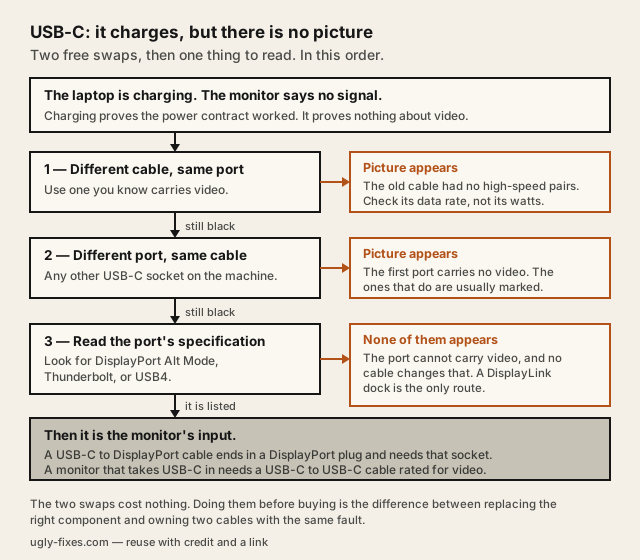
Swap one — a different cable, the same port. If the picture appears, the original cable has no high-speed pairs. It is a charging cable. Nothing about its wattage predicted this: the number that does is the data rate, and a cable published at 480 Mbps is USB 2.0 and cannot carry a display signal at all. Baseus publishes exactly that figure for its 100 W retractable cable, which is the clearest example there is of a fast cable that will never show you a picture — the reasoning is in the Baseus Free2Pull Mini review.
Swap two — the same cable, a different port. If the picture now appears, the first port does not do video. This is extremely common on laptops with more than one USB-C socket, and the ones that carry video are usually marked: a small DisplayPort logo, or a Thunderbolt bolt.
If neither swap changes anything, the question has moved to the monitor's input and to whether the port supports Alt Mode at all. Both are answered by reading rather than buying.
Why buying a better cable so often disappoints
The instinct is to buy a thicker, higher-wattage, more expensive cable. It fails about half the time, because wattage and video capability are unrelated specifications that happen to share a connector.
A 240 W cable can be USB 2.0. A cable that carries 8K video can be limited on power. The two capabilities cost different things to build — power needs copper and an e-marker chip, video needs four additional shielded high-speed pairs — and makers pick which ones to pay for.
And a cable cannot add a capability the port does not have. This is the part worth internalising, because it is where the money goes wrong. If the USB-C socket has no DisplayPort Alt Mode, there is no cable, no brand and no price that produces a picture from it.
Cable Matters is unusually direct about this, and it is why its cable is the one named here. Its own product page states that the source port must support DisplayPort Alt Mode, Thunderbolt or USB4, and that the cable "does not work with USB-C hub ports that are power-only or data-only". That is the constraint most listings leave out, and it is the constraint that decides the purchase.
Cable Matters 201036 USB-C to DisplayPort 1.4 cable
Cable Matters
The buy once the port is confirmed to do Alt Mode and the monitor has a DisplayPort input. Unidirectional — host to monitor, and not for a portable USB-C monitor.
Check price and availability(opens in a new tab, affiliate link)Affiliate link. Price shown on the merchant's site.
What actually matters
The port, first
Three phrases in a specification mean the port can carry video: DisplayPort Alt Mode, Thunderbolt 3, 4 or 5, and USB4. A port described only as "USB 3.2 Gen 2 with Power Delivery" is a power and data port, and that is a complete description rather than an omission.
Desktop motherboards are the place this catches people out most often. A rear USB-C socket on a desktop board frequently carries no video unless the board's own documentation says it does, because the picture has to come from the graphics card and reach that socket somehow. The manual is the authority, not the shape of the hole.
The cable, second
The number to read on a cable is its data rate, not its wattage. 480 Mbps means USB 2.0 and no video, whatever else the listing says. 5, 10, 20, 40 or 80 Gbps means the high-speed pairs exist.
That is the whole of it, and it is why a charging cable that came in a phone box is the single most common cause of this symptom.
The monitor's input, third
A USB-C to DisplayPort cable ends in a DisplayPort plug and expects a DisplayPort socket. A portable monitor or an all-in-one display that takes USB-C in needs a USB-C to USB-C cable rated for video instead. Getting these the wrong way round produces the identical black screen, and the cable is working perfectly.
The options, and who each suits
A USB-C to DisplayPort cable suits the common desk case: a laptop whose port does Alt Mode, a monitor with a spare DisplayPort input, one cable, no adapter in the middle. It is the fewest things that can fail.
A USB-C to HDMI adapter suits a monitor or a television with no DisplayPort input, and travel, where the display belongs to a hotel or a meeting room and HDMI is what it has.
USB-C to HDMI travel adapter
For the display you do not own. HDMI is the input a hotel television or a meeting-room screen actually has.
See current options(opens in a new tab, affiliate link)Affiliate link. Price shown on the merchant's site.
A dock suits the laptop with one usable port that must also deliver power, network and peripherals. It is the most expensive answer and the only one that solves more than the picture — the trade-offs are set out in docking station vs USB hub.
JSAUX HB0603 6-in-1 docking station
JSAUX
The one-port case: video, power passthrough and peripherals from a single connection. It still needs Alt Mode from the port unless it is a DisplayLink model.
Check price and availability(opens in a new tab, affiliate link)Affiliate link. Price shown on the merchant's site.
A cable tester suits nobody with one suspect cable, and genuinely suits somebody with a drawer of twenty identical black ones. The threshold is worked out in is a USB-C cable tester worth it.
The mistake to avoid
Buying a second cable before doing the second swap. The two-swap test costs nothing and takes two minutes, and it is the difference between replacing the right component and owning two cables with the same fault.
The runner-up mistake is assuming a dock rescues a port with no Alt Mode. Most docks need exactly what a cable needs. The exception is a DisplayLink dock, which sends compressed video over ordinary USB data and rebuilds it in a driver — that genuinely does work on a port with no video capability, at the cost of some CPU and the occasional refusal on protected content. It is the right answer to a narrow question, and the wrong answer to every other one.
If the symptom is flicker or a refresh rate that will not hold rather than a black screen, testing a display cable before replacing it is the page for that, and the reasoning is the same: prove which component is failing before buying a replacement for one that is not.
Questions people actually ask
Why does the laptop charge but not display?
How do I tell whether a USB-C cable can carry video?
How do I tell whether the port can carry video?
Does a dock fix a port that has no Alt Mode?
Why does my portable USB-C monitor not work with a USB-C to DisplayPort cable?
Question this page did not answer? Ask it.